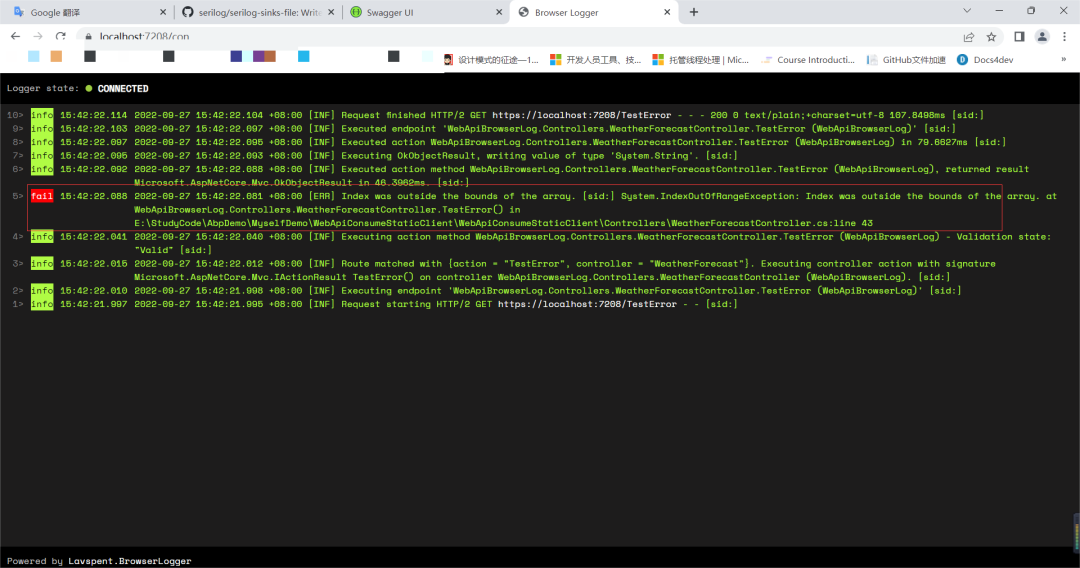
注:本示例参考 johnwas 的代码来实现 在项目部署运行时若系统报错,通常只能通过查看系统日志文件的方式来排查代码报错;这是一个非常不便的事情,通常需要登录服务器并找到系统日志文件,才能打开日志查看具体的日志信息;就算将日志记录到数据库或者elasticserach,查看起来也非常不便;若系统报错,直接打开浏览器就能看到报错信息,并确认报错的代码位置,这将非常有用非常酷。我们将实现这样的功能,netcore项目在浏览器输出日志实际中的效果如下:.
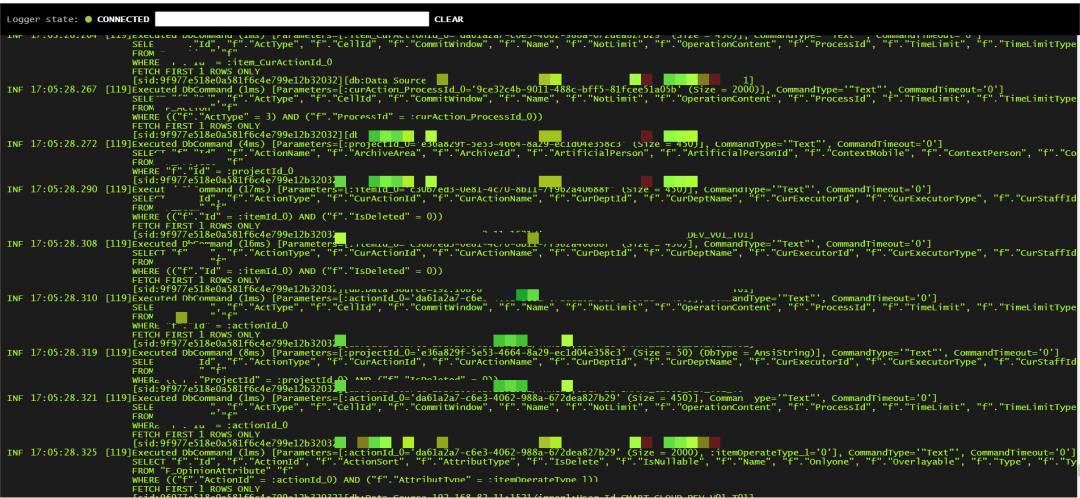
在浏览器显示日志是根据https://github.com/lavspent/Lavspent.BrowserLogger为基础进行改造的。
下载该项目并运行Test
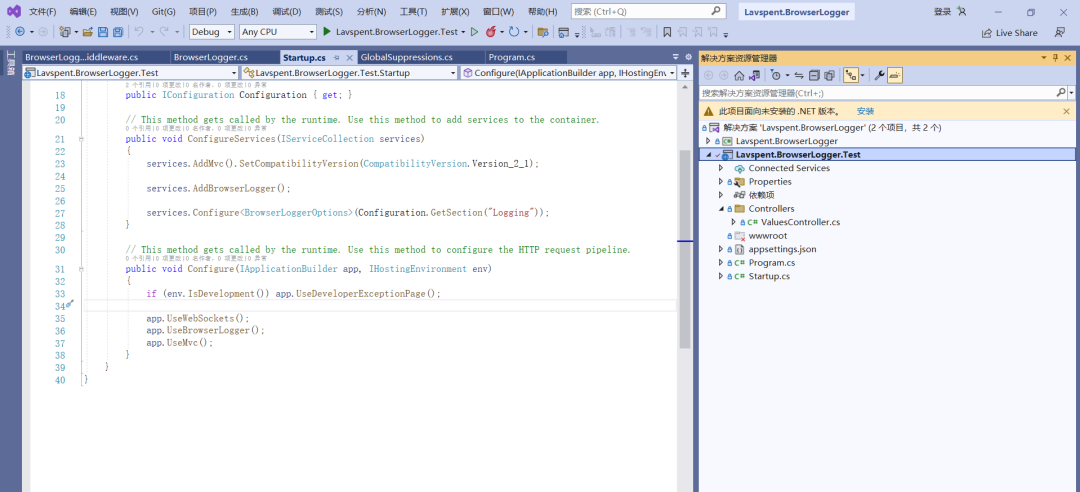
运行效果
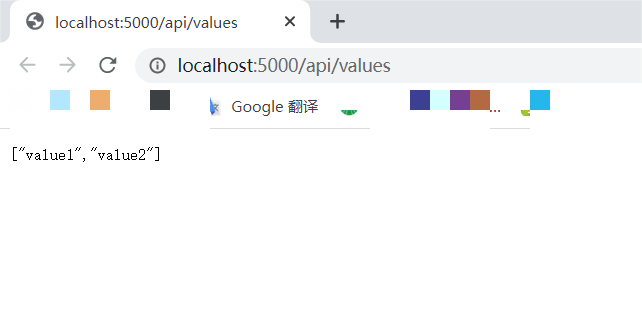
日志显示界面地址为http://localhost:5000/con,刷新http://localhost:5000/api/values,日志界面接收日志信息并实时显示效果如图
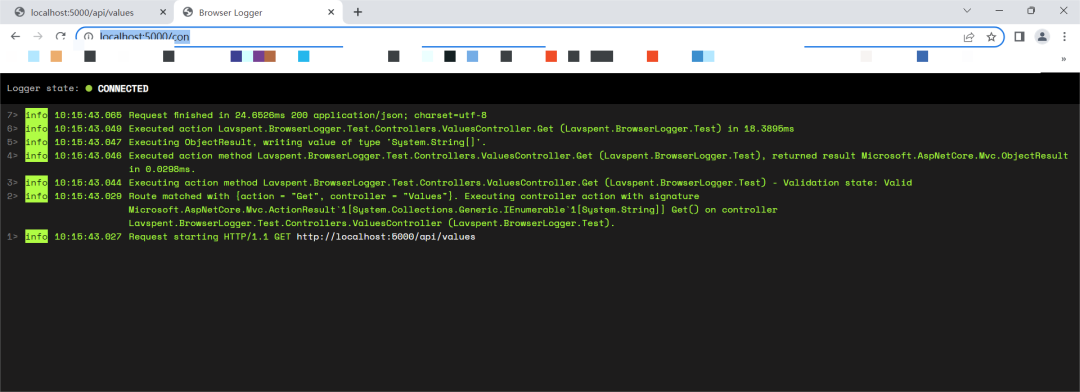
我们将在netcore项目中使用serilog并使用Lavspent.BrowserLogger将日志信息显示在浏览器上。
新建net6 webapi项目,并添加Serilog.AspNetCore包引用
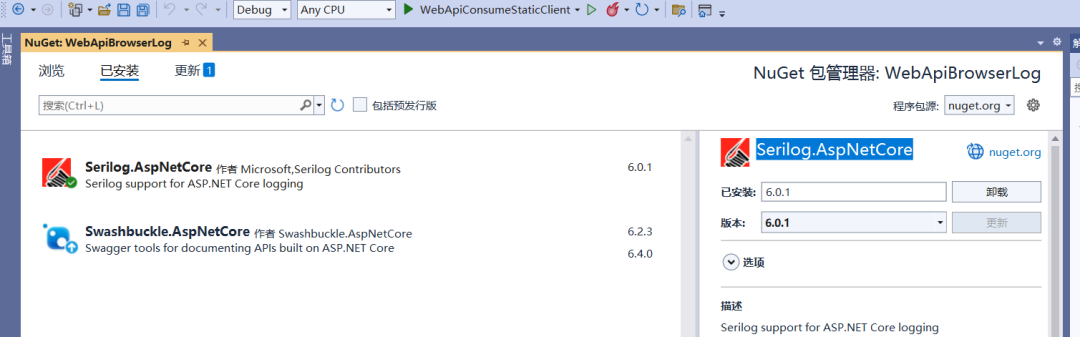
在program中添加代码使用serilog
builder.Host.UseSerilog((context, logger) => {     logger.WriteTo.Console();    logger.WriteTo.File("Logs/log.txt");
});
在WeatherForecastController中添加代码输出日志
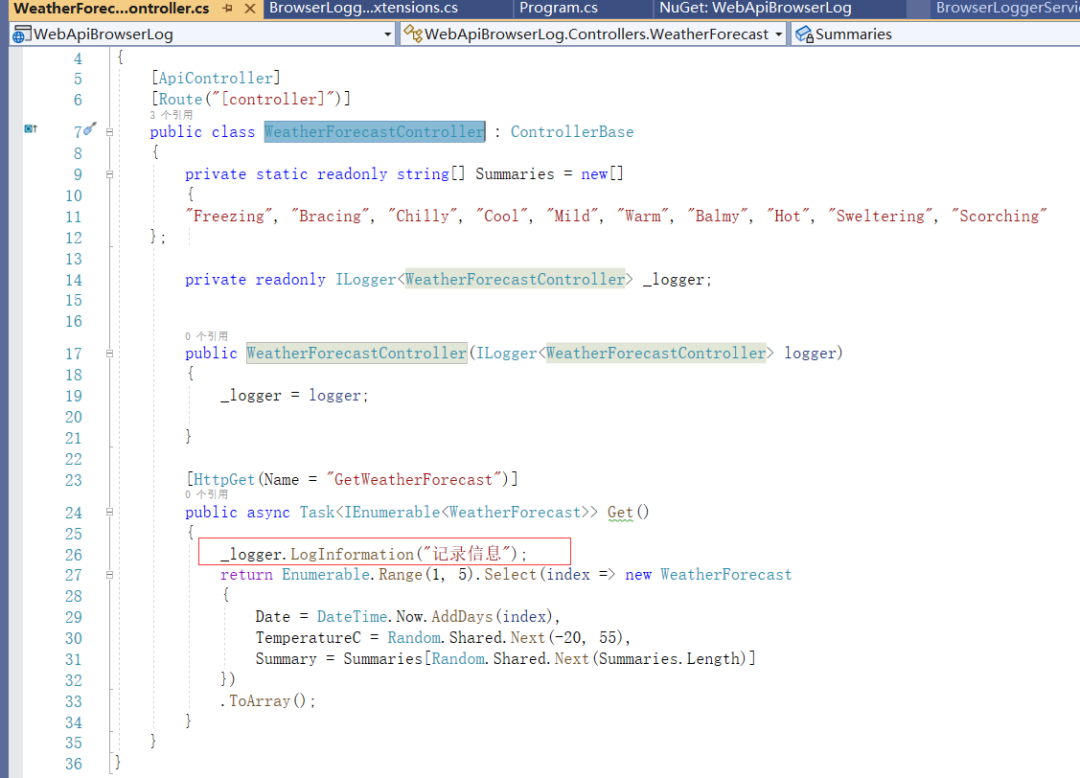
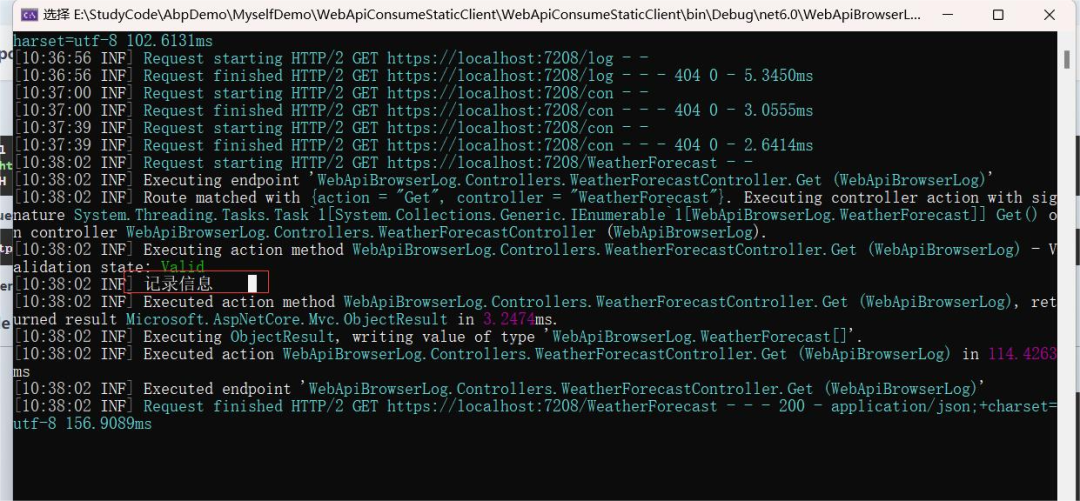
控制台和日志输出了代码中的日志信息,serilog启用正常。
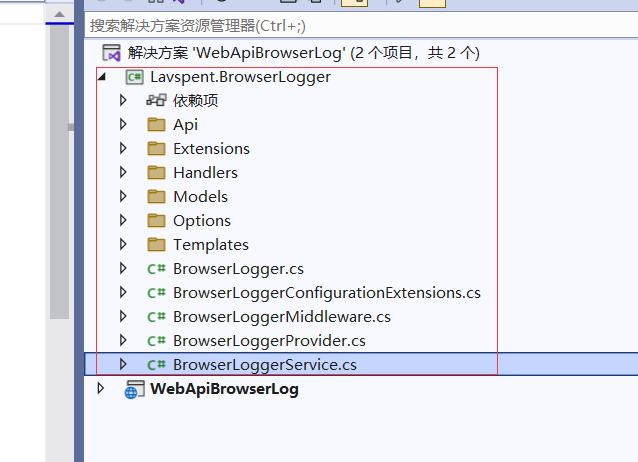
将下载的Lavspent.BrowserLogger类库添加到webapi项目所在的解决方案中
按照Lavspent.BrowserLogger使用说明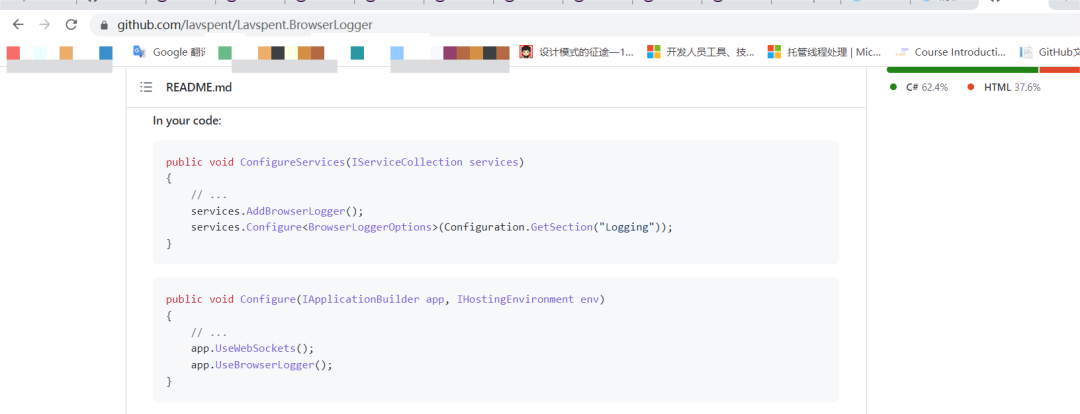
添加使用代码
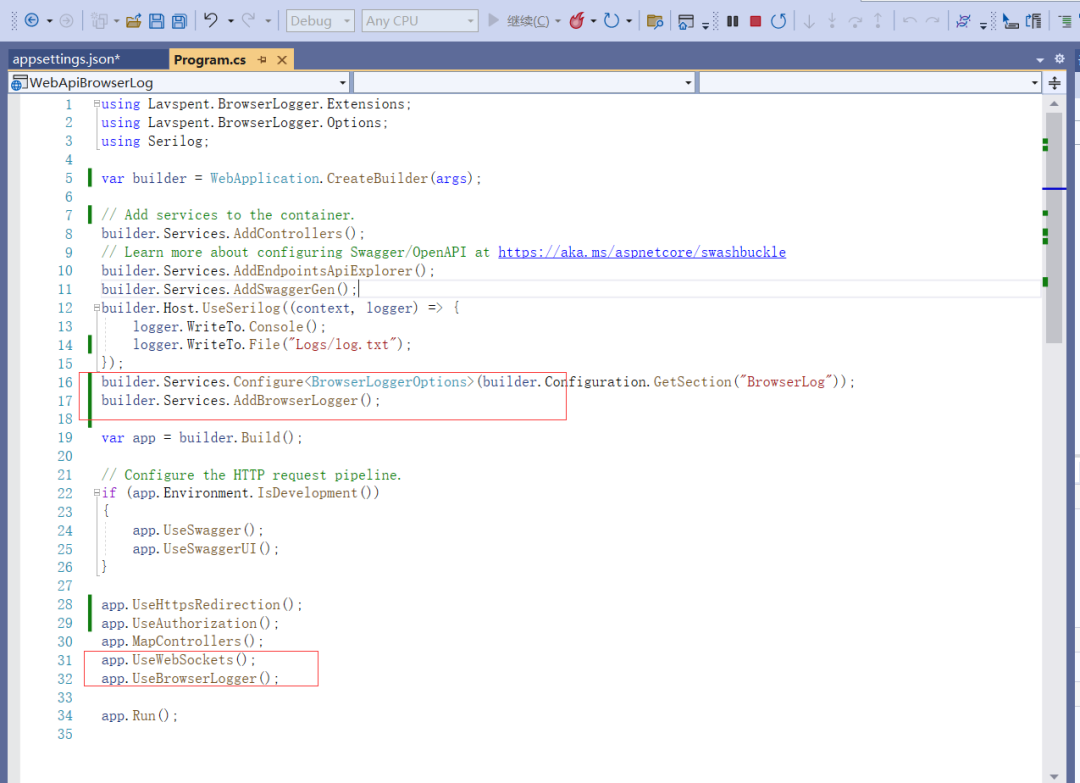
BrowserLoggerOptions选项从配置文件appsetting.json读取
{"BrowserLog": {"LogLevel": {"Default": "Warning"},"ConsolePath": "con","WebConsole": {"LogStreamUrl": "wss://localhost:44364/ls", //注意:改成自己项目的端口,如果项目使用https前缀为wss,http前缀为ws"ShowClassName": false}},"AllowedHosts": "*"}
集成完成后,通过swagger触发测试方法
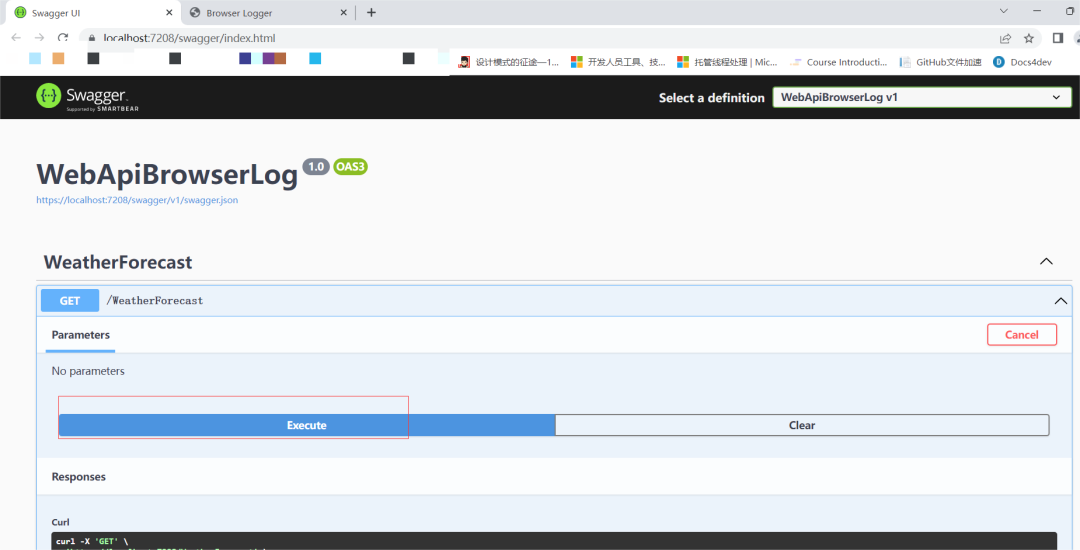
发现Browser Logger没有输出日志信息
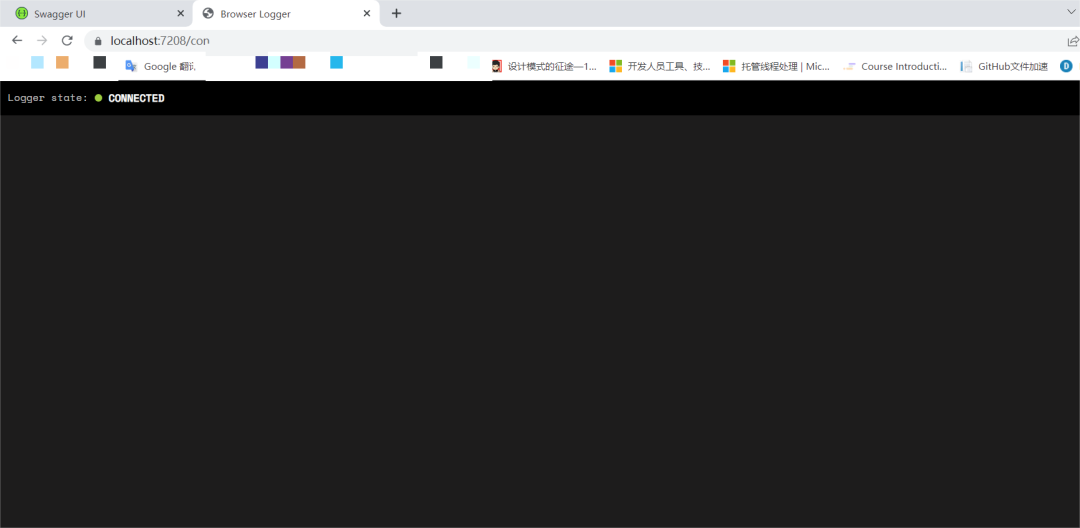
发现是Serilog的使用问题,Serilog提供各种接收器(Sink)来处理日志输出到不同位置。在program中这选中代码F12。
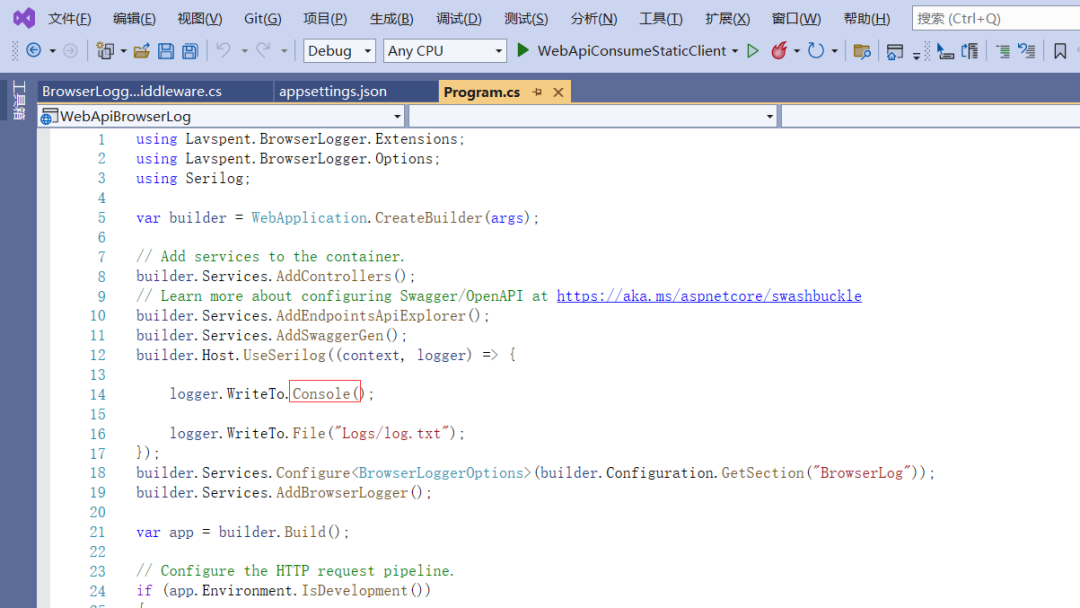
Serilog提供了ConsoleSink、FileSink来处理将日志输出到控制台和输出到文件。
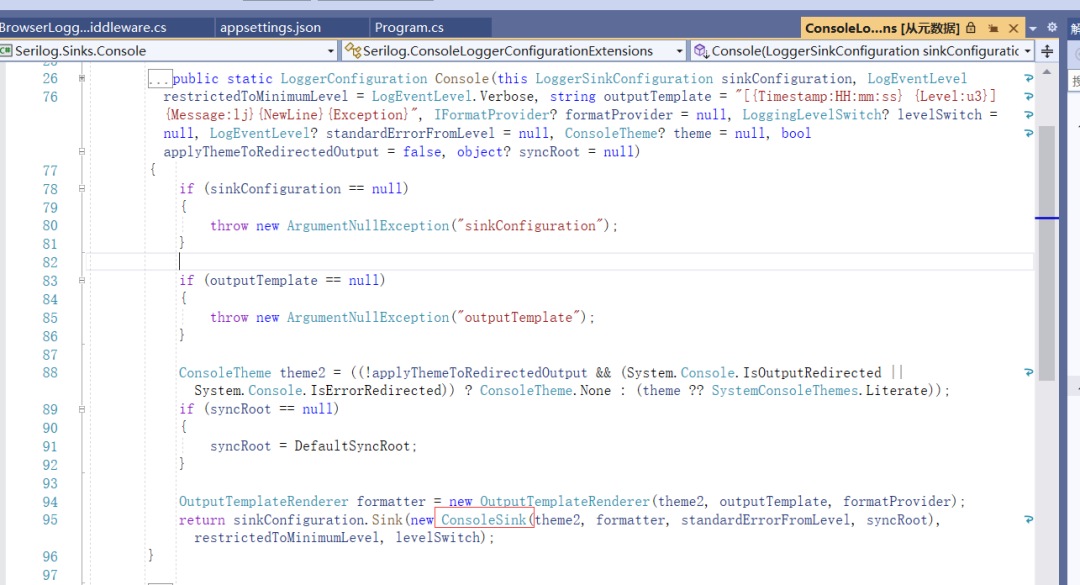
为了Serilog的日志信息输出到Browser Logger,我们需要自定义一个日志接收器。关于Serilog的接收器,可查看:https://github.com/serilog/serilog/wiki/Provided-Sinks;
如何自定义Serilog接收器,可查看:https://github.com/serilog/serilog/wiki/Developing-a-sink;
自定义Serilog接收器:
在类库项目中添加接收器类BrowserSink.cs;添加扩展类BrowserLoggerConfigurationExtensions.cs
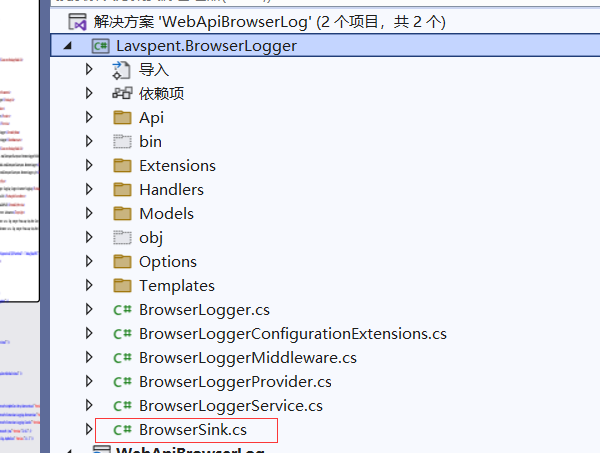
代码如下:
using Serilog.Core;using Serilog.Events;using Serilog.Formatting;using System;using System.IO;using System.Text;using Lavspent.BrowserLogger;using Lavspent.BrowserLogger.Models;using System.Collections.Generic;using System.Threading;
namespace Serilog.Sinks.Browser{    public class BrowserSink : ILogEventSink    {        readonly ITextFormatter _textFormatter;        string _outputTemplate;
        public BrowserSink(            ITextFormatter textFormatter,            string outputTemplate)        {                        _textFormatter = textFormatter ?? throw new ArgumentNullException(nameof(textFormatter));            _outputTemplate = outputTemplate;        }
        private void RenderFullExceptionInfo(TextWriter textWriter, Exception exception)        {            Stack<Exception> se = new Stack<Exception>();            while (exception != null)            {                se.Push(exception);                exception = exception.InnerException;            }            while (se.TryPop(out exception ))            {                textWriter.Write("\n*** Exception Source:[{0}] ***\n\n{1}\n\n{2}\n",                     exception.Source,                     exception.Message,                     exception.StackTrace);                            }                 }        public void Emit(LogEvent logEvent)        {            if (BrowserLoggerService.Instance == null)                return;
            using (TextWriter textWriter = new StringWriter())            {
                _textFormatter.Format(logEvent, textWriter);
                LogEventPropertyValue ev;                Exception exception = logEvent.Exception;                if (exception != null)                {                    if (logEvent.Properties.TryGetValue("EventId", out ev))                    {                        RenderFullExceptionInfo(textWriter, exception);                    }                }                BrowserLoggerService.Instance.Enqueue(new LogMessageEntry                {                    LogLevel = (Microsoft.Extensions.Logging.LogLevel)logEvent.Level,                    TimeStampUtc = DateTime.UtcNow,                   // ThreadId= Thread.CurrentThread.ManagedThreadId,                    Name = "",                    Message = textWriter.ToString()                });            }        }    }}
using Serilog.Configuration;using Serilog.Core;using Serilog.Events;using Serilog.Formatting;using Serilog.Formatting.Display;using Serilog.Sinks.Browser;using System;namespace Serilog{    public static class BrowserLoggerConfigurationExtensions    {        static readonly object DefaultSyncRoot = new object();        public const string DefaultOutputTemplate = "{Timestamp:yyyy-MM-dd HH:mm:ss.fff zzz} [{Level:u3}] {Message:lj} [sid:{CorrelationId}] {NewLine}{Exception}";        // public const string DefaultOutputTemplate = "{Message:lj}{NewLine}{Exception}[sid:{sid}][db:{db}]";
        public static LoggerConfiguration Browser(            this LoggerSinkConfiguration sinkConfiguration,            LogEventLevel restrictedToMinimumLevel = LevelAlias.Minimum,            string outputTemplate = DefaultOutputTemplate,            IFormatProvider formatProvider = null,            LoggingLevelSwitch levelSwitch = null)        {            if (sinkConfiguration is null) throw new ArgumentNullException(nameof(sinkConfiguration));            var formatter = new MessageTemplateTextFormatter(outputTemplate, formatProvider);            return sinkConfiguration.Sink(new BrowserSink(formatter, outputTemplate),                restrictedToMinimumLevel,                levelSwitch);        }
    }}
在program中启用新定义的BrowserSink接收器,在UseSerilog修改成如下:
builder.Host.UseSerilog((context, logger) => {
    logger.WriteTo.Console();
    logger.WriteTo.File("Logs/log.txt");
    logger.WriteTo.Browser();});
在swagger触发测试方法,这时候Browser Logger接收到了日志信息:
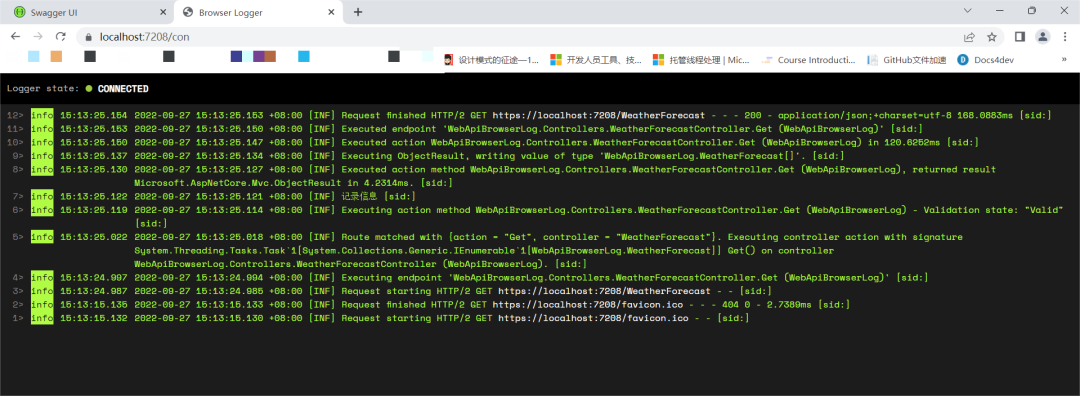
我们在WeatherForecastController添加方法测试异常信息
/// <summary> /// 添加方法测试异常信息 /// </summary> /// <returns></returns> [HttpGet("/TestError")] public IActionResult TestError() { string result = string.Empty; try { //数组Summaries的只有十个元素,超过数组边界,报错 result = Summaries[20]; } catch (Exception ex) { _logger.LogError(ex, ex.Message); } return Ok(result); }启动项目,在swagger触发TestError,Browser Logger接收到了报错日志信息,并提示我们报错的代码位置是哪一行,这在系统运行的时候是很有帮助的,开发人员不用去数据库、或者服务器日志文件就能看到报错的信息。
但是报错信息还是不够显眼,报错信息如果能变成红色显示就能很快区分开来;而且页面会一直显示接收到的日志信息,当接收到报错信息最好能断开接收器,这样就能停留在报错信息的位置,并去排查错误了。基于此,对Default.html改造一下。
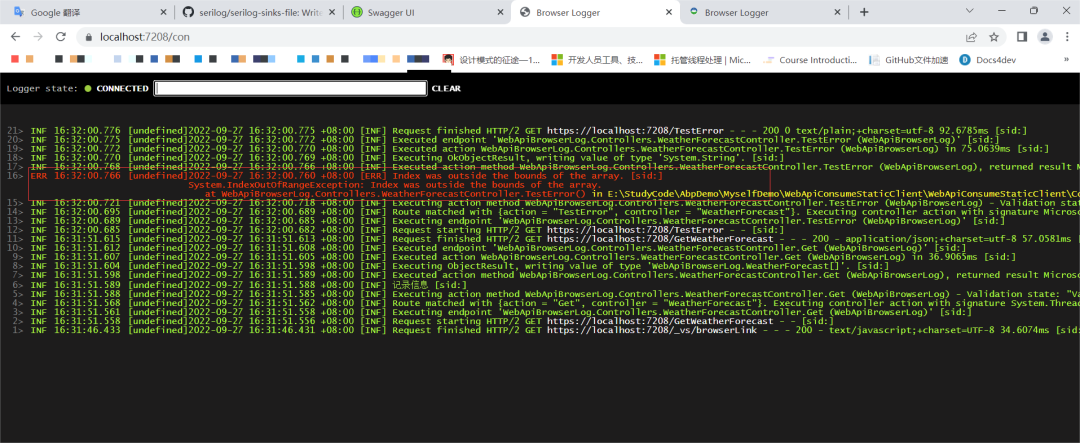
Default.html改造完成后启动项目接着触发TestError,这时候我们看到报错信息已经变成了红色一目了然。
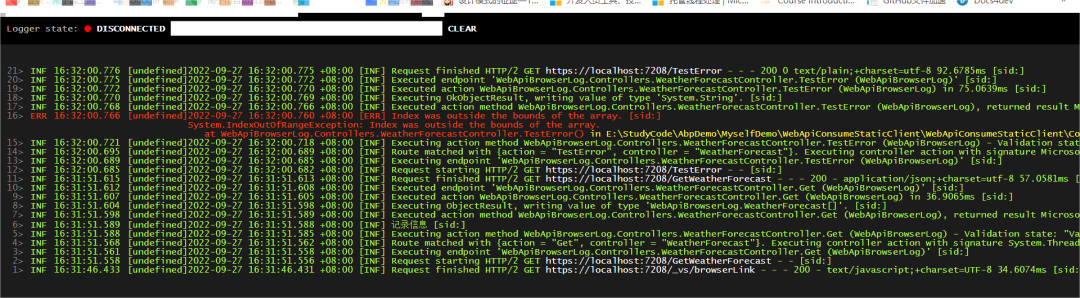
点击CONNECTED,连接信息就会变成DISCONNETED,尝试触发测试方法,Browser Logger不再接收新的信息。
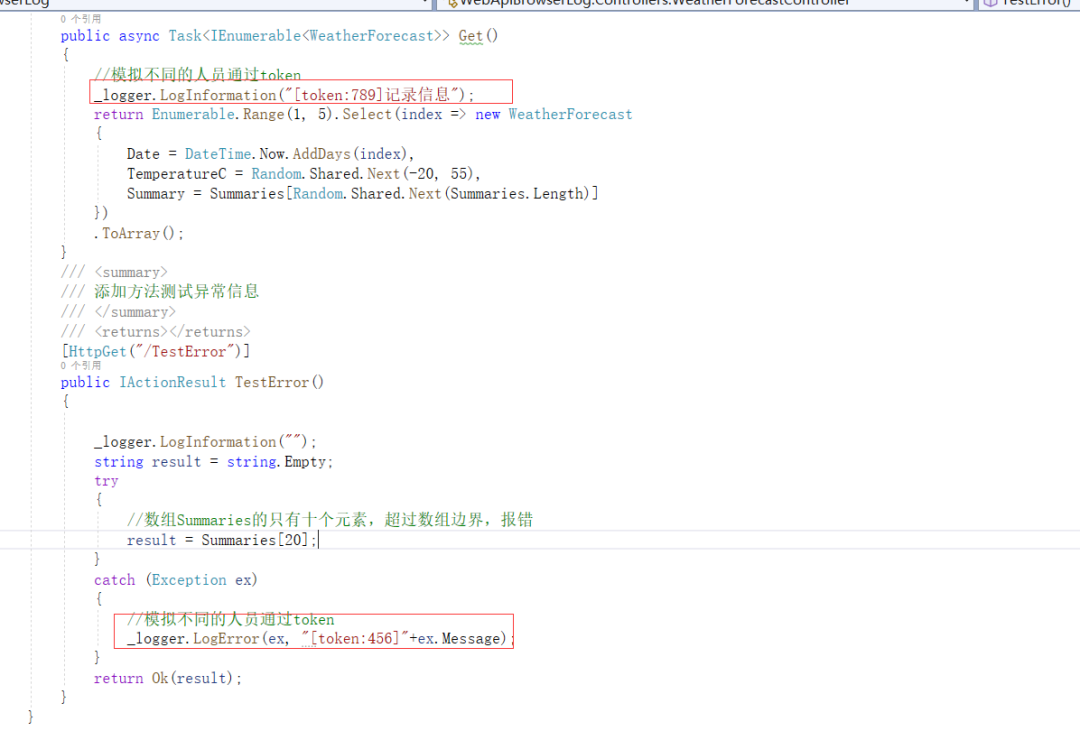
模拟不同人员使用系统,我们只关注触发报错的用户日志信息。修改控制代码
在日志接收页面的过滤器中输入过滤关键字:456(模拟报错用户),点击GetWeatherForecast、TestError。
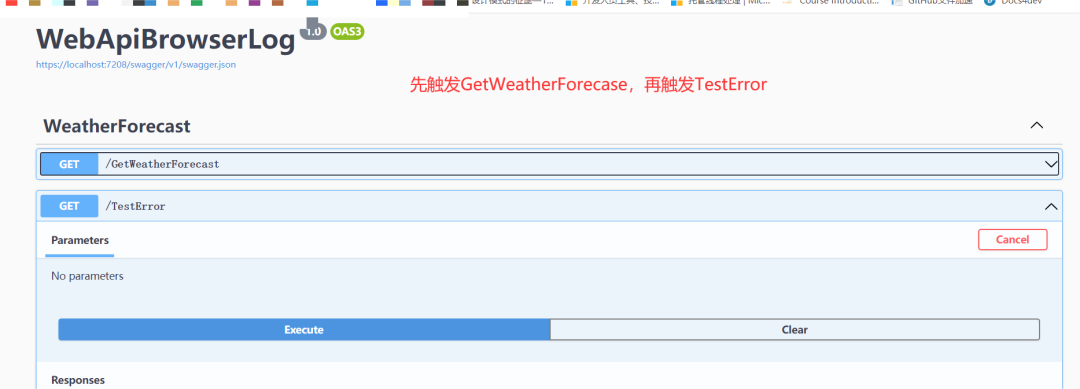 日志显示页面只显示包含[token:456]的报错信息。
真实项目中如果要设定一些日志的额外信息,可通Enrichment来设置,详细信息可查看:https://github.com/serilog/serilog/wiki/Enrichment。
示例源代码:https://github.com/fisherLB/WebApiBrowserLog